Turn the home screen
into your next customer touchpoint.
One Page. One App. PWA design and
home screen marketing without sign-ups or push notifications.
OJapp PRO turns an existing web page into a home screen entry point, measures launches from that icon, and shows a message or image only at launch.
Manifest extensions
Offer View / Click
Message / Image / Link
01 A web page can live on the home screen
Think beyond PWAs as substitutes for native apps.
Web pages are usually reached through search, social media, or links, and the entry point disappears when the page is closed. OJapp places the page itself on the smartphone home screen, leaving a direct way back outside the browser.
1P1A treats one meaningful page—such as a product, article, tool, store, event, or booking page—as one app instead of treating the whole site as one app.
No searching again
Users return directly to the page from its home screen icon.
No sign-up first
Adding a page to the home screen requires no OJapp user account.
No push required
Users open it when they need it instead of being chased by notifications.
Use the web you already have
Use an existing page as the entry point instead of building a new app from scratch.
1P1A does not mean forcing every page into an app. It means choosing pages worth keeping on the home screen and giving each one its own name, icon, and launch URL.
02 1S1A and 1P1A
Neither is inherently better. The difference is what you define as one app.
Design the entire site as one app
Design each page as its own app
OJapp’s 1P1A script dynamically generates a Web App Manifest from the page URL, title, and icon candidates. It removes the need to maintain a separate static manifest.json for every page and enables page-level PWA design with one script line.
FREE creates the PWA entry point. PRO adds Manifest extensions, home screen launch analytics, and launch-only offers.
03 What OJapp PRO can do
Design what happens after a page reaches the home screen.
Manifest Extension
Set Theme Color and Background Color to match your brand.
Shortcuts
Add up to two shortcuts for quick access to booking, menus, and more.
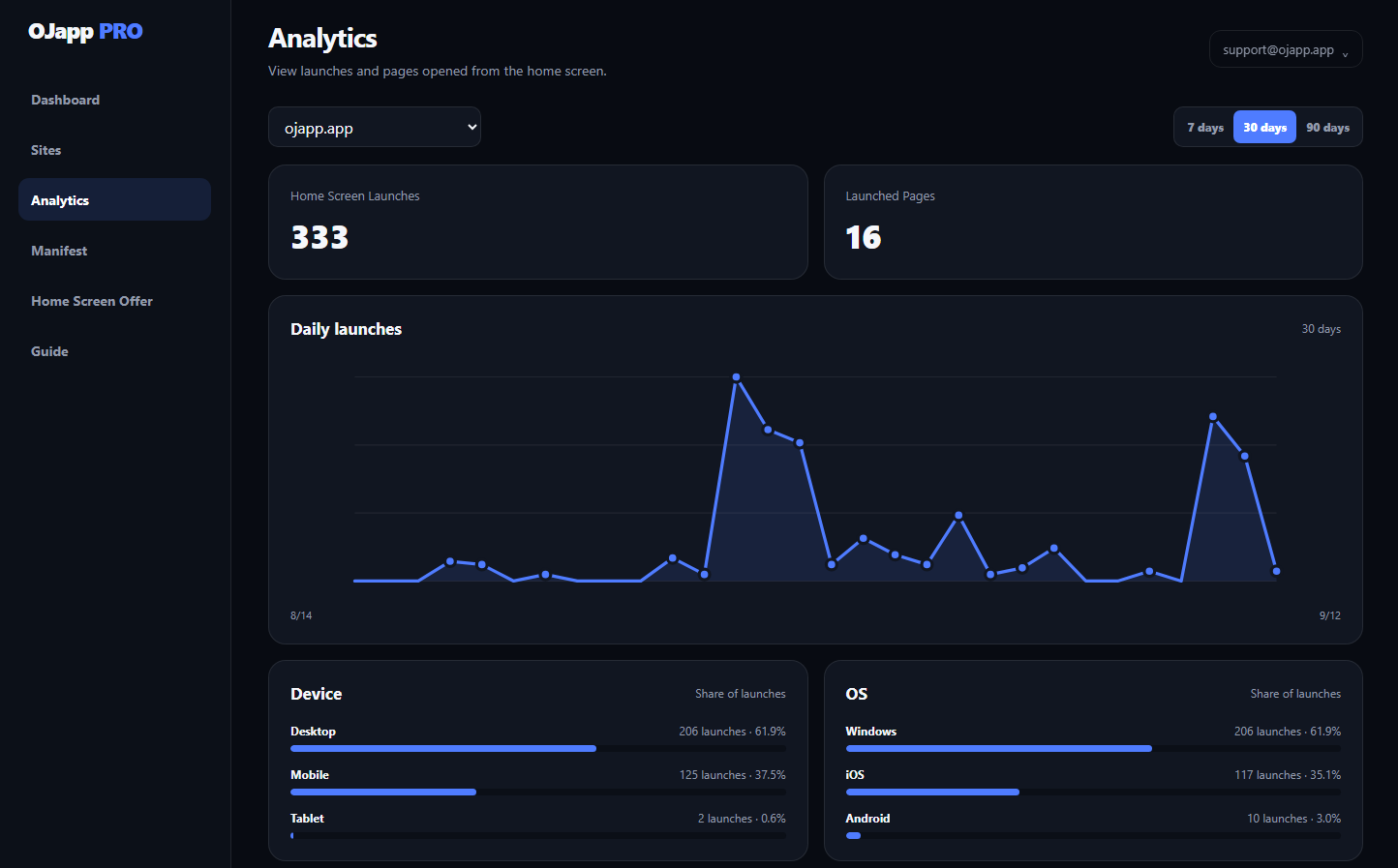
Home Screen Launches
Record standalone launches and understand return visits from the home screen.
Page / OS Analytics
Analyze home screen launches by page, OS, and more.
Home Screen Offer
Show a message or image only when launched from the home screen.
Offer View / Click
Measure offer views and clicks to understand what happens after launch.
Offers are designed to appear when the PWA launches from the home screen, not during ordinary browsing. They create a touchpoint specifically for users who have already kept your page on their home screen.
04 Add → Launch → Welcome
Use the moment users return instead of sending a notification.
The OJapp PRO journey is simple: users add the page to their home screen, launch it when they need it, and receive relevant information or a next step at that moment. PRO measures that intentional launch.
Instead of continuously sending messages, leave an entry point on the home screen and return value when the user opens it. OJapp is built around this quieter relationship.
An offer can contain a short message, image, and link URL. The link can lead to an existing booking page, store, form, checkout, Notion page, or other service. OJapp connects the home screen to the tools you already use.
05 How to think about Analytics
See the relationship with the home screen that page views alone cannot show.
While general analytics covers traffic and browsing across the web, OJapp PRO focuses on the home screen as an entry point: whether the page was kept, whether users returned from it, and what they did afterward.
06 Home Screen Offer
A small welcome for people who kept your page on their home screen.
MESSAGE
Show updates, exclusive information, or the next page to visit in a short message.
IMAGE
Present a campaign, event, product, or coupon with one image.
LINK
Link to an existing booking, purchase, form, or member page.
SESSION CONTROL
Control frequency so the full offer does not repeatedly interrupt the same visit.
Opening from the home screen shows clearer intent than an incidental web visit. The offer is not designed for a hard sell; it helps you decide what value to return to someone who came back.
After appearing, the offer minimizes into a compact button and can be reopened when needed. Avoiding persistent interruption is part of designing an app users will keep.
Home Screen Offer in Action
A welcome after a home screen launch.
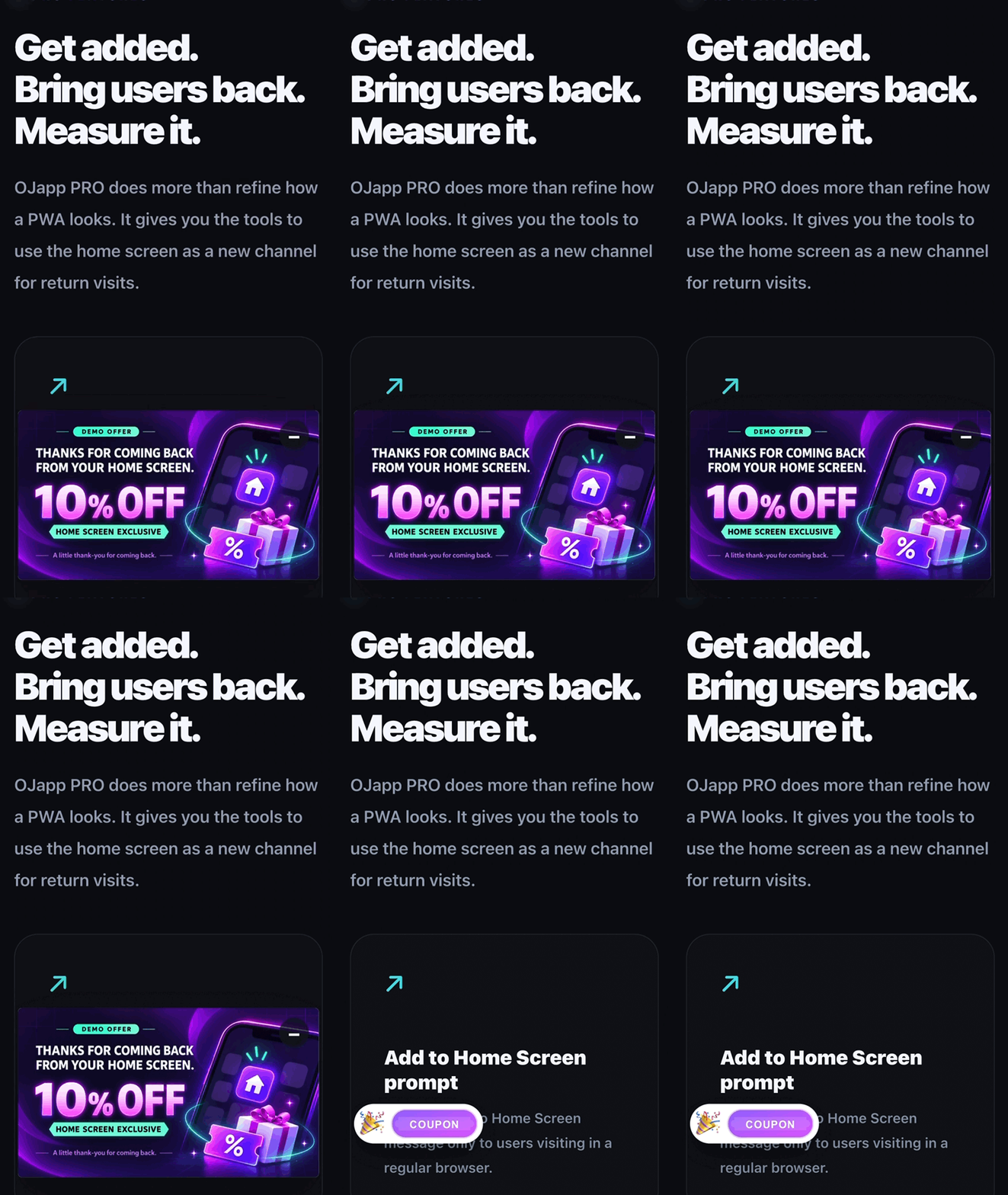
The display changes with the user’s context, connecting the Add to Home Screen prompt and the returning experience into one journey.
07 Use cases
Pages with a reason to return are the best fit for the home screen.
EVENT / FESTIVAL
Keep schedules and venue information on the home screen, then use an offer for same-day updates or the next event.
CAFE / RESTAURANT
Keep a menu or store page and connect users to bookings or exclusive information.
WEB TOOL
Launch image tools, calculators, generators, and more directly from a dedicated icon.
CREATOR / EC
Give products and works their own entry points, then announce new or limited releases with an offer.
FACILITY
Keep pages for facilities, availability, Wi-Fi, and instructions ready for repeated use on location.
MEDIA / BLOG
Keep a specific article, series, or collection on the home screen as a direct route back.
OJapp PRO is not only for cases that call for daily notifications. It also fits pages that are not needed often but are valuable to open instantly when the time comes. The harder a page is to find again, the more useful its home screen entry point becomes.
08 Quick Start
Start by adding one issued line without rebuilding your existing site.
Setup is simple. After registration, configure your site to receive a site-specific JavaScript URL, then load it on the target site.
Note: oj_xxxxx.js is an example. Each registered site receives its own URL.
This one line is the core code required for setup.
You do not need to add large amounts of PWA or PRO code to your site. Settings are managed by OJapp; your site only loads the issued script.
09 Page, site, and group settings
Add page-specific settings only when needed.
With 1P1A, add ojapp:title / ojapp:icon only when you want a page-specific app name or icon. If omitted, the Manifest is generated from the page’s existing information.
<meta name="ojapp:icon" content="/icon.png">
Choose 1S1A mode when treating the whole site as one app.
To group a specific directory or hub into one app, specify id / start_url / scope and use 1S1A mode.
<meta name="ojapp:start-url" content="/dashboard/">
<meta name="ojapp:scope" content="/dashboard/">
<meta name="ojapp:mode" content="1s1a">
Page / Site / Group.
Choose whether the PWA covers a page, a whole site, or a group.
10 Manifest / Install Presentation
Add a dedicated description and visuals to the install screen.
You can separate the search description from the install description.ojapp:description takes priority in the Manifest; otherwise the regular meta description is used.
Specify one or multiple install-screen images for each page.
Single image
ojapp:screenshot is used.
Up to five images
ojapp:screenshot-1〜5 is used. Numbered entries take priority when present.
<meta name="ojapp:screenshot-1" content="/images/install-1.png">
<meta name="ojapp:screenshot-2" content="/images/install-2.png">
Keep screenshots square.
Use the same aspect ratio for multiple images. They are registered as wide on desktop and narrow on Android.
11 Conclusion
Do not let the web end when a page is closed.
The web is powerful because anyone can access a URL without an app store. 1P1A brings that page to the home screen, and OJapp PRO adds measurement and a launch experience to the entry point.
This is not about increasing registrations or notifications. Keep a page users want to revisit on the home screen and return value when they come back. OJapp PRO is the PWA marketing platform for that relationship.
1 subscription = 1 domain
1 subscription = 1 domain
1P1A / 1S1A / 1G1A | Manifest Extension | Shortcuts | Home Screen Launches | Page / OS Analytics | Home Screen Offer | Offer View / Click
This page is itself an OJapp PRO demo.
Add it to your home screen and try launching it.
Note: hiding the header and footer is custom CSS used only for this demo.